iPad & Android tablets
Room for the whole class.
The same Exigu, laid out for the bigger screen. A side rail replaces the tab bar, lists stay open beside whatever you are working on, and charts sit side by side — on iPad and on Android tablets.
What changes on a tablet
A side rail
Exams, Examinee, Scan, Reports and Settings move into a rail down the left edge, always one tap away.
Two panes
Lists stay open beside what you open from them — an exam next to the exam list, an examinee next to the roster.
Readable widths
Charts share rows, forms put short fields side by side, and Settings keeps to a column instead of stretching edge to edge.
01 — Exams
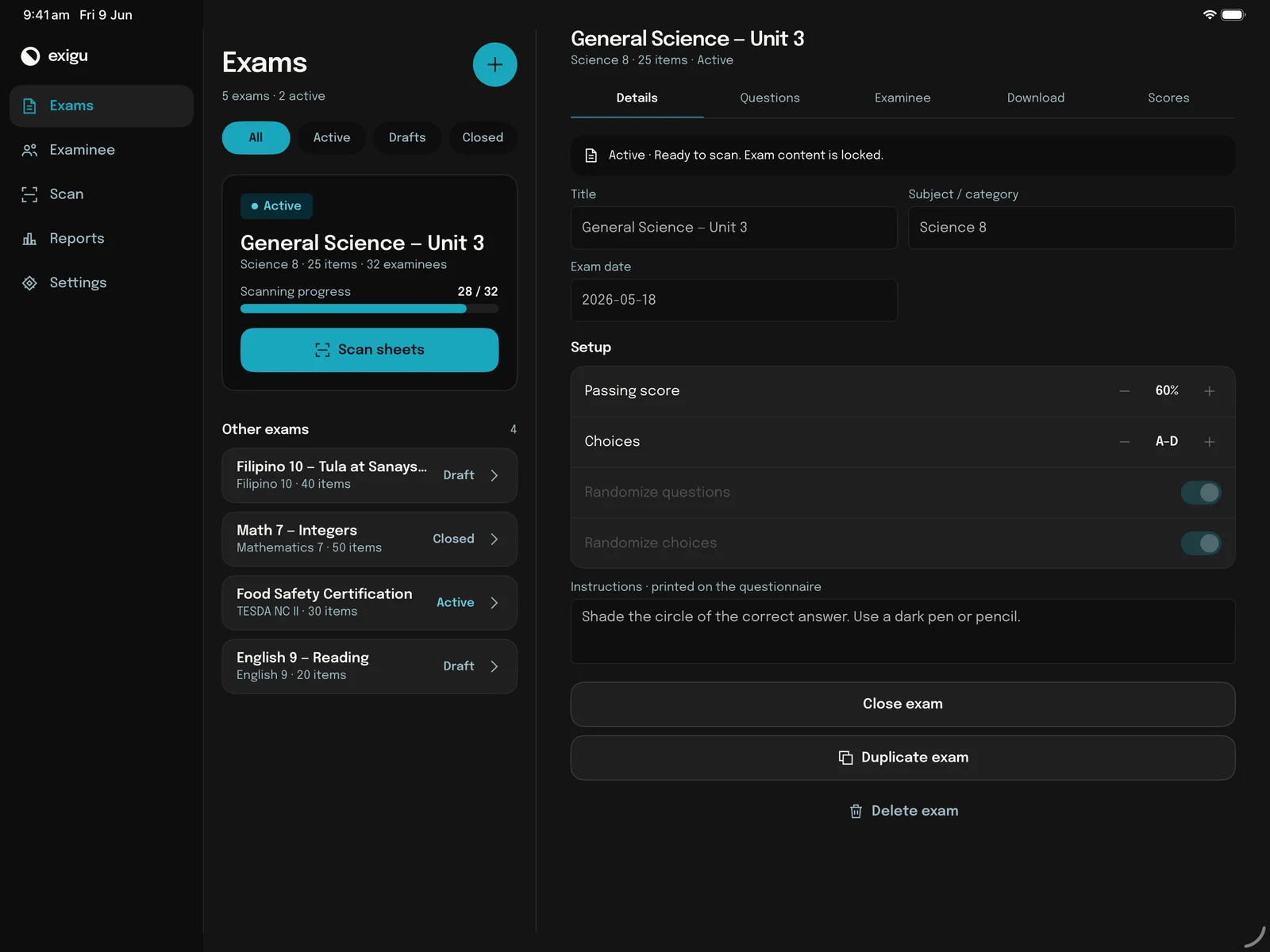
Every exam on the left. The one you are grading on the right.
The exam list stays open in its own column while an exam opens beside it, with Details, Questions, Examinee, Download and Scores one tap apart. Switch exams without backing out of anything.
02 — Examinee
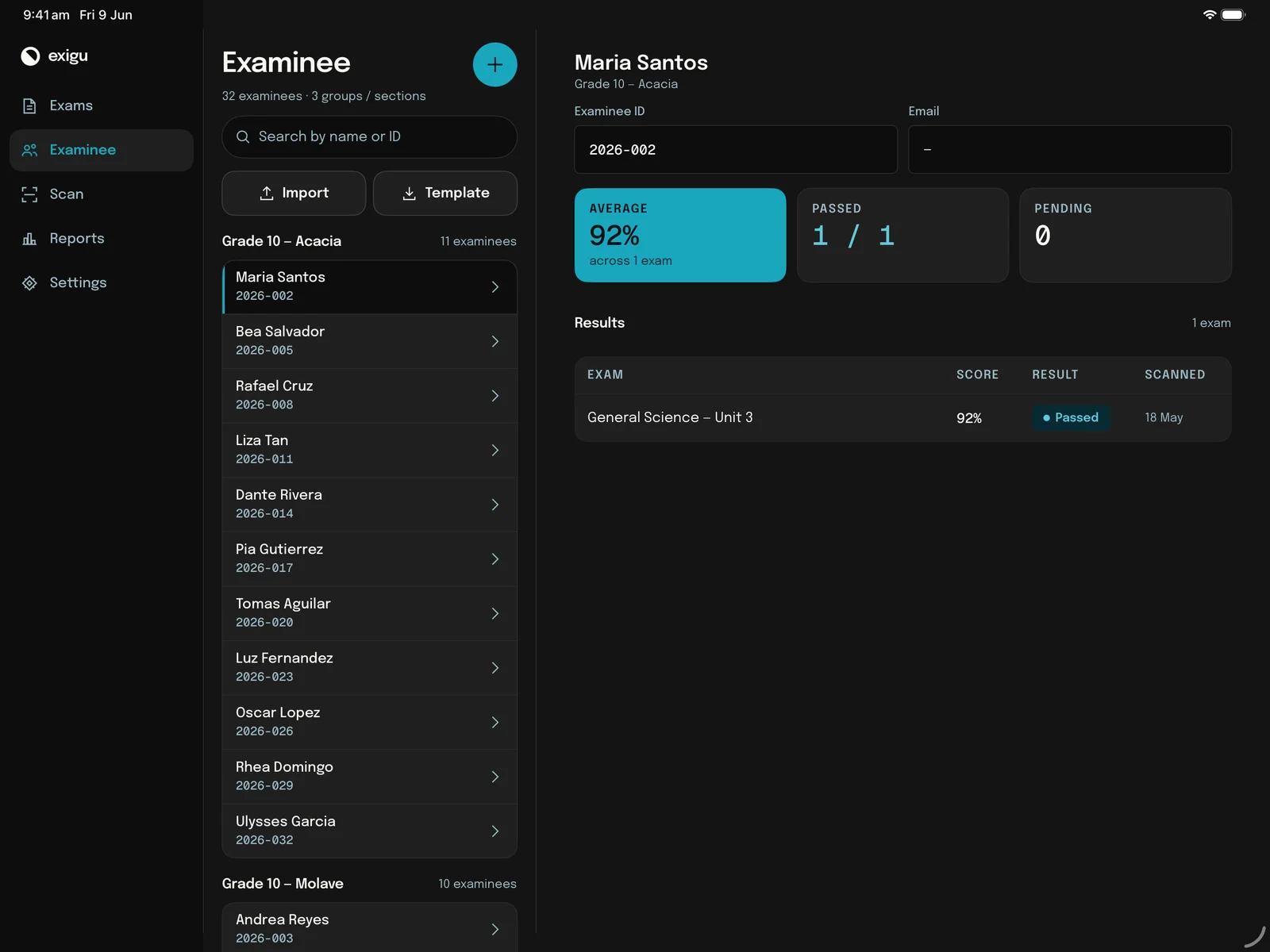
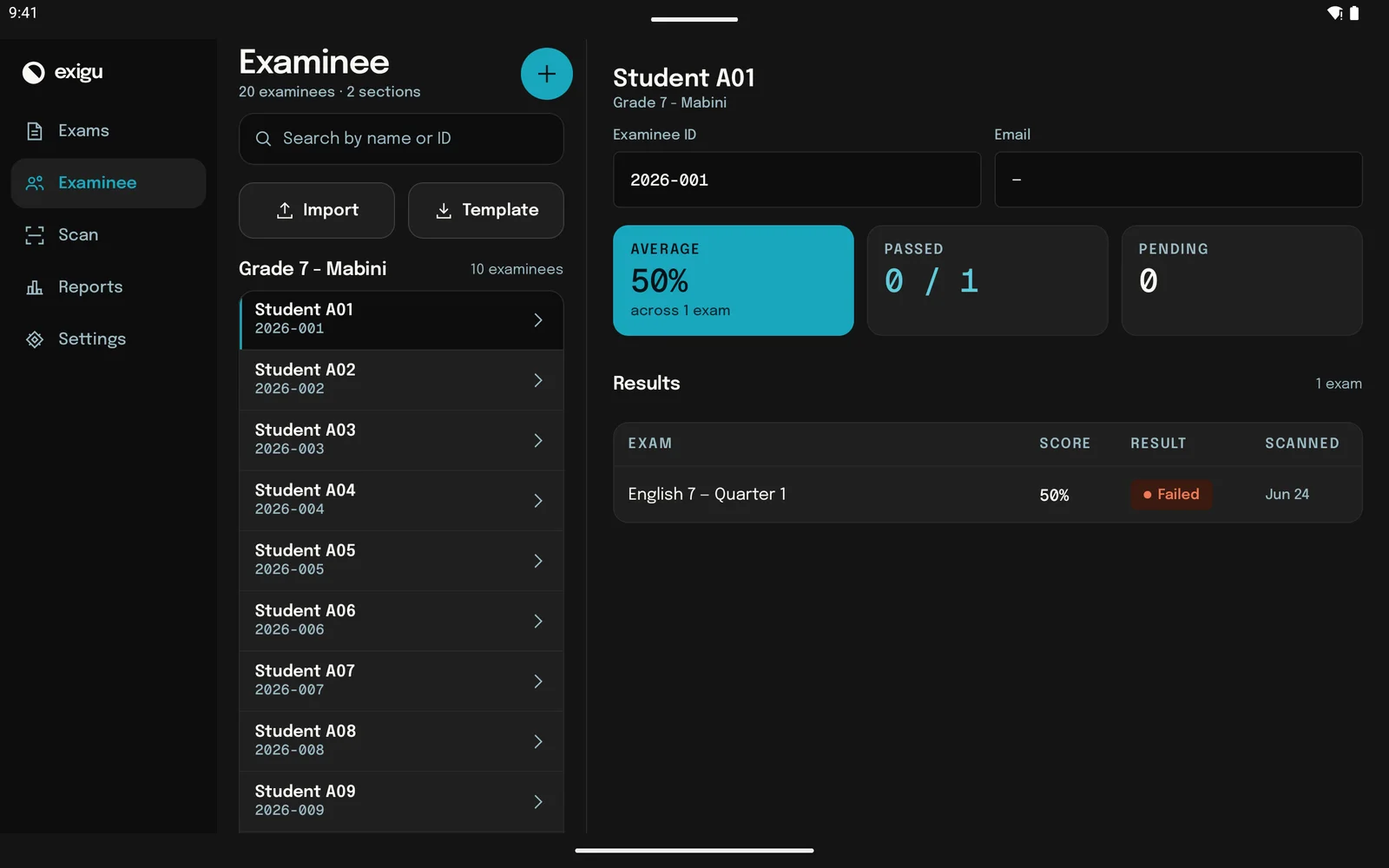
Pick a name, see their whole record.
The roster stays in a column, grouped by section. Tap an examinee and their ID, average, passed count and every exam they have sat open next to it — no sheet sliding over the list.
03 — Scan
A running tally beside the camera.
The viewfinder takes the middle of the screen. Beside it, a session panel counts the sheets scanned so far, shows the score of the last one, and lists recent scans with their result — so you can scan a stack without leaving the camera.
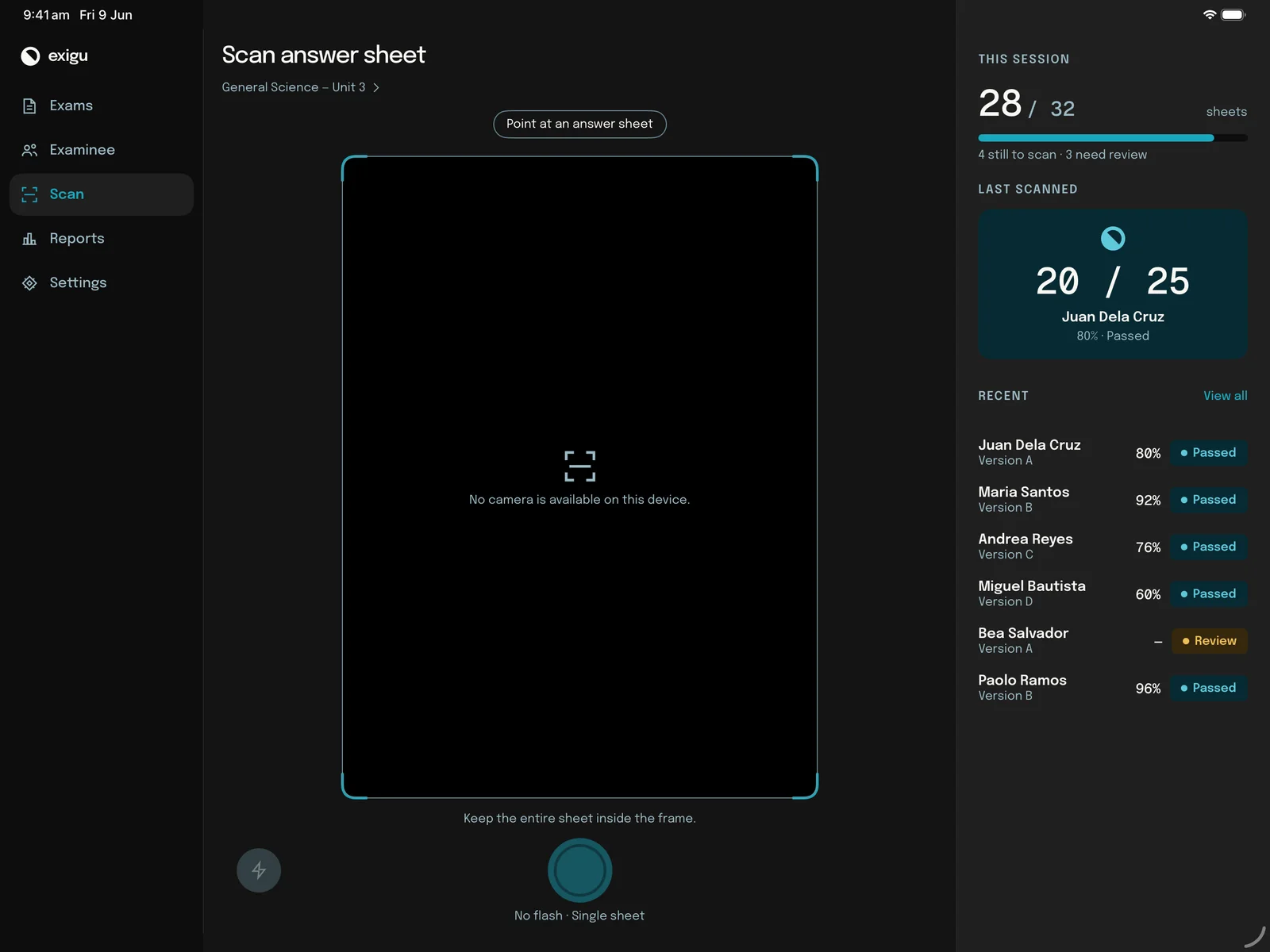
Captured in the iPad simulator, which has no camera — on a real iPad the viewfinder shows the sheet.
04 — Reports
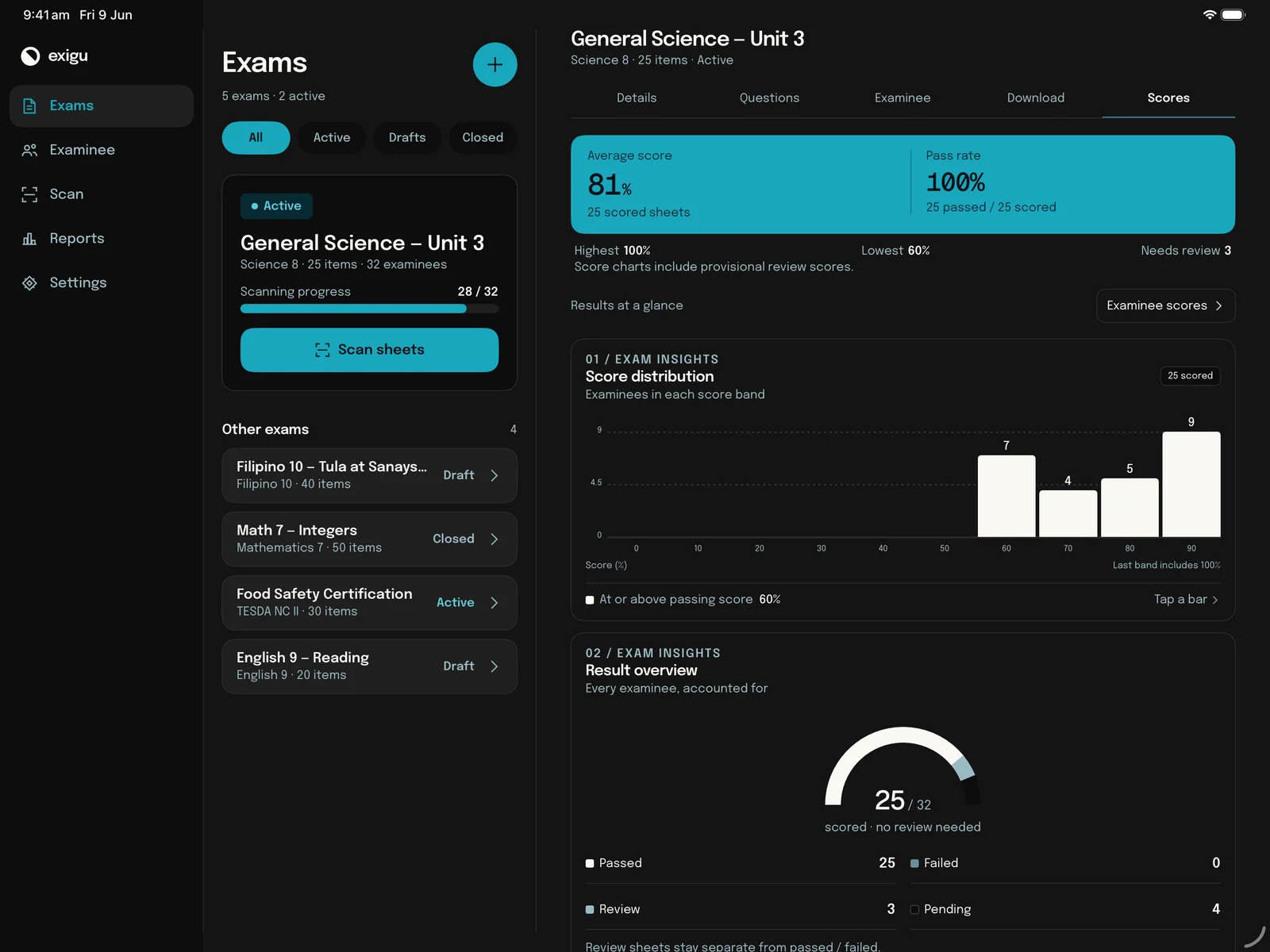
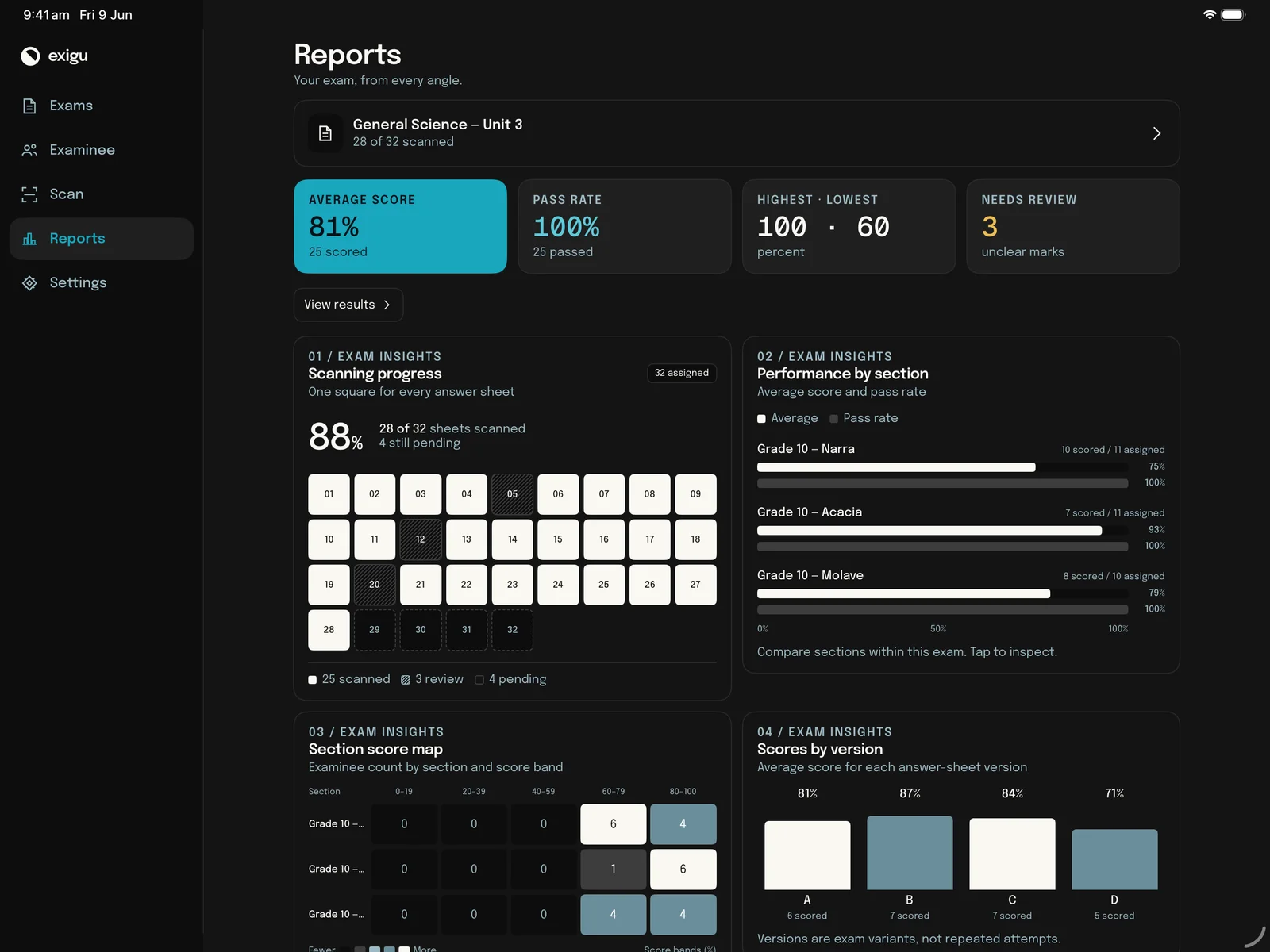
Four charts, two by two.
The headline numbers sit in one row — average, pass rate, highest and lowest, needs review — and the four exam insights fill a grid underneath. Every bar and square still opens the examinees behind it.
05 — Settings
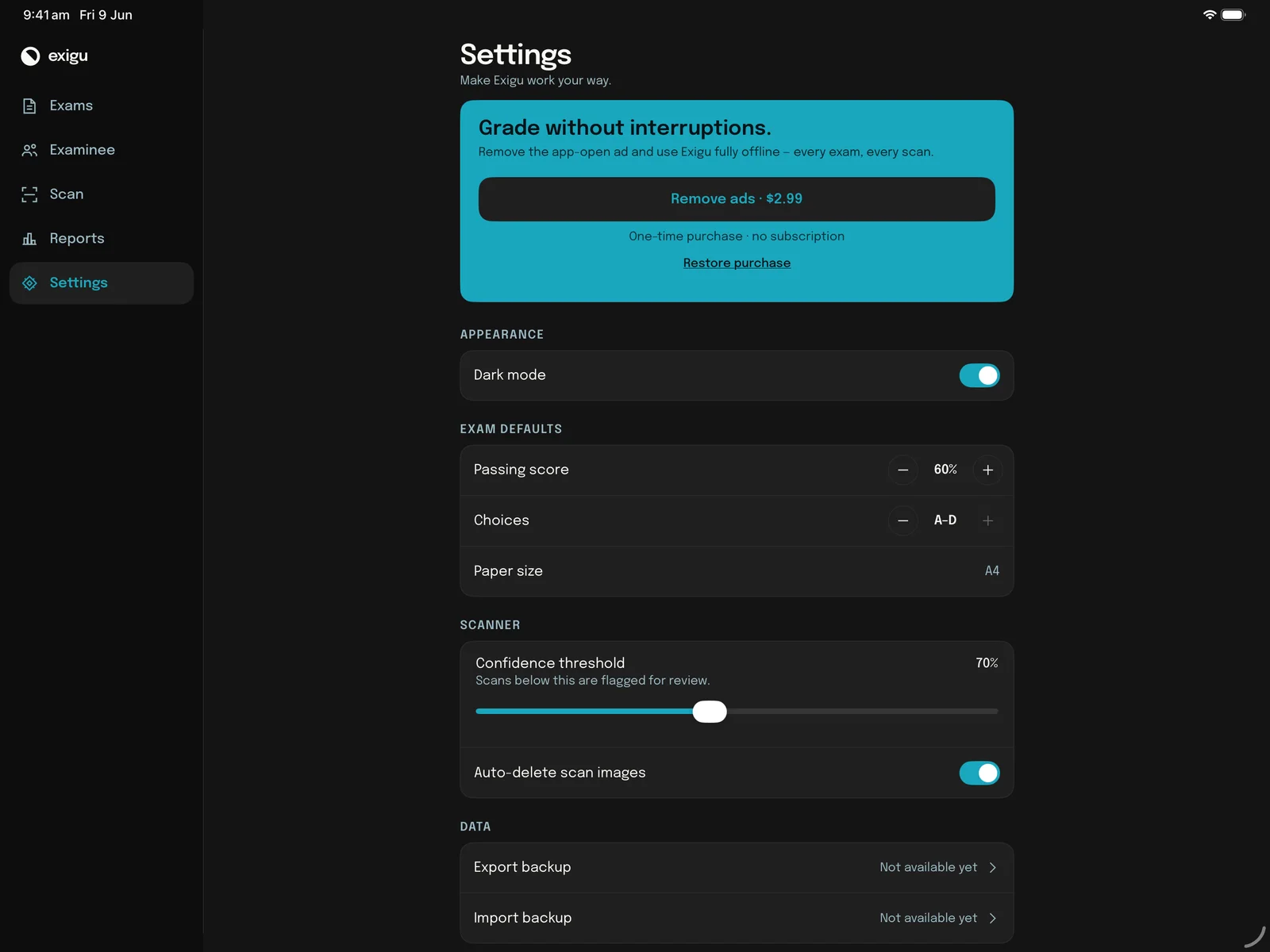
Settings at a width you can read.
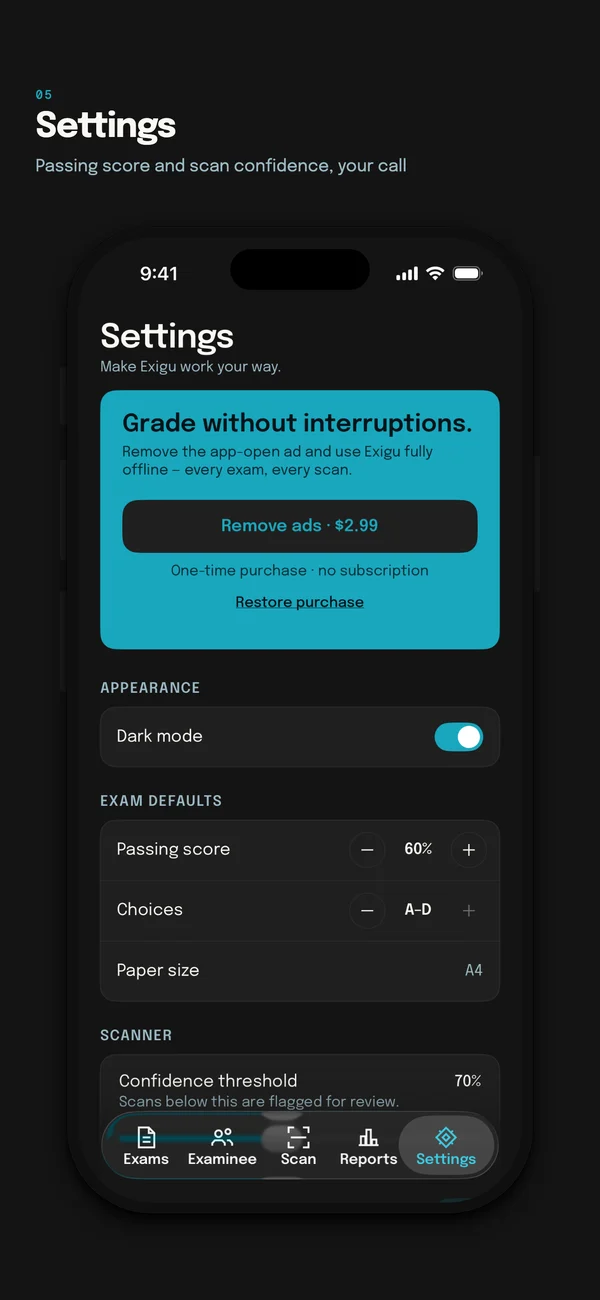
Instead of stretching across the whole display, Settings keeps to one centred column: Remove Ads at the top, then appearance, exam defaults and the scanner.
Android tablets
The same layouts, in Material 3.
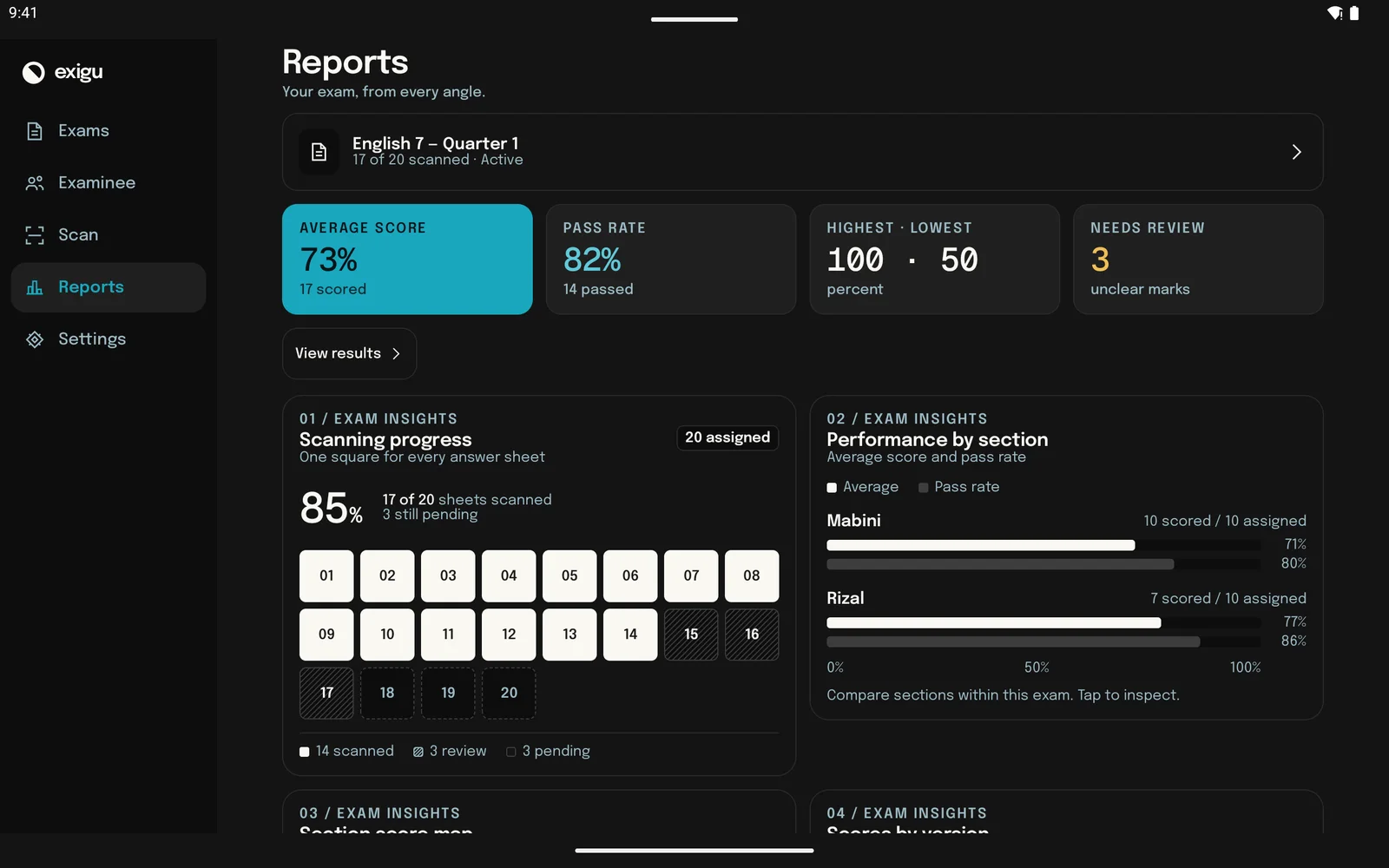
On a Pixel Tablet or any large Android screen, Exigu uses the same side rail, the same two panes and the same chart grid — built with Android’s own components.
Good to know
One purchase, every device
Remove Ads belongs to your Apple ID or Google account. Bought it on your phone? Open Settings on the tablet and tap Restore purchase.
Your data stays on each device
Exigu has no account and no cloud sync. Exams, examinees and scores are stored on the device you entered them on — a tablet starts with its own empty library.
And on iPhone
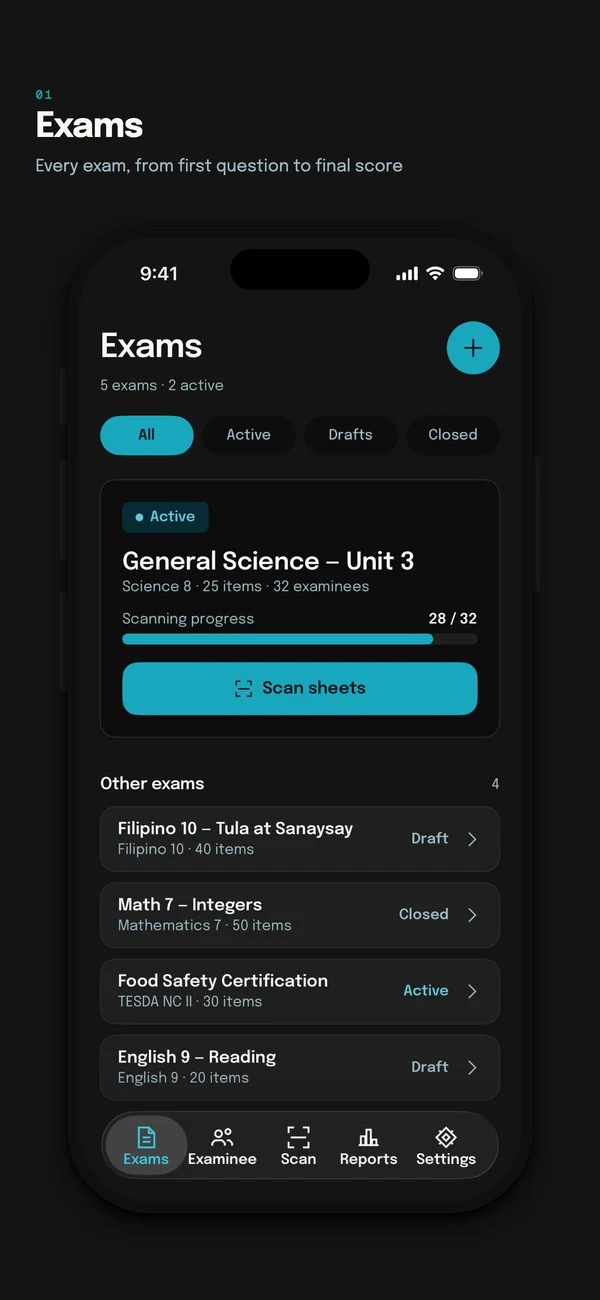
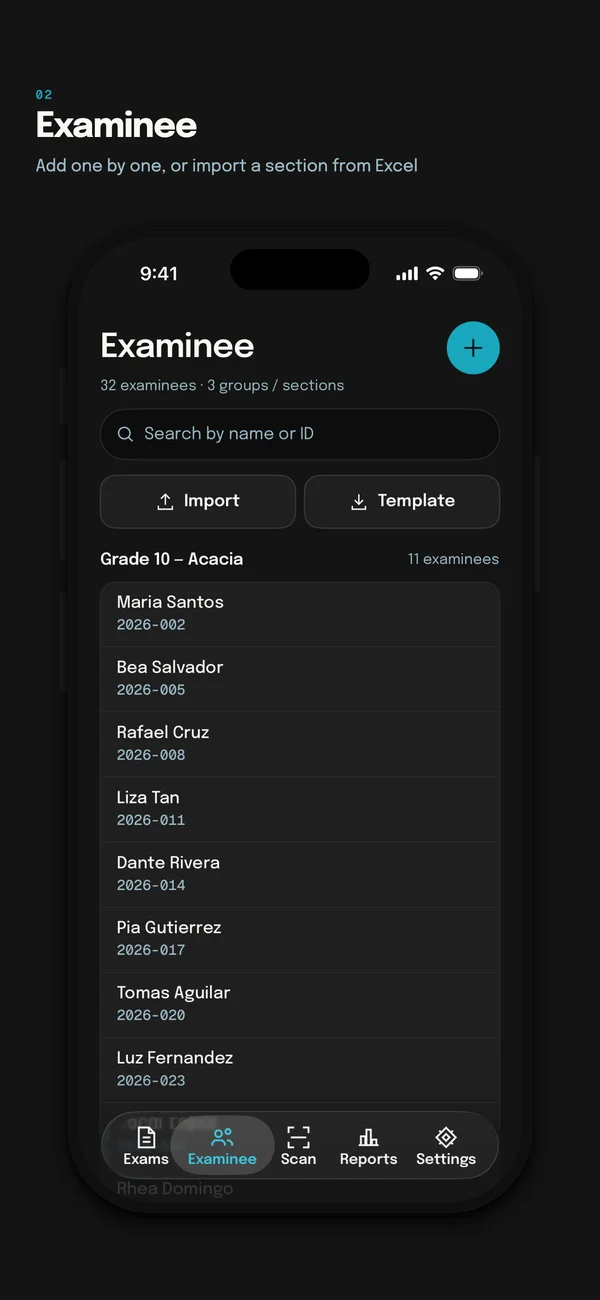
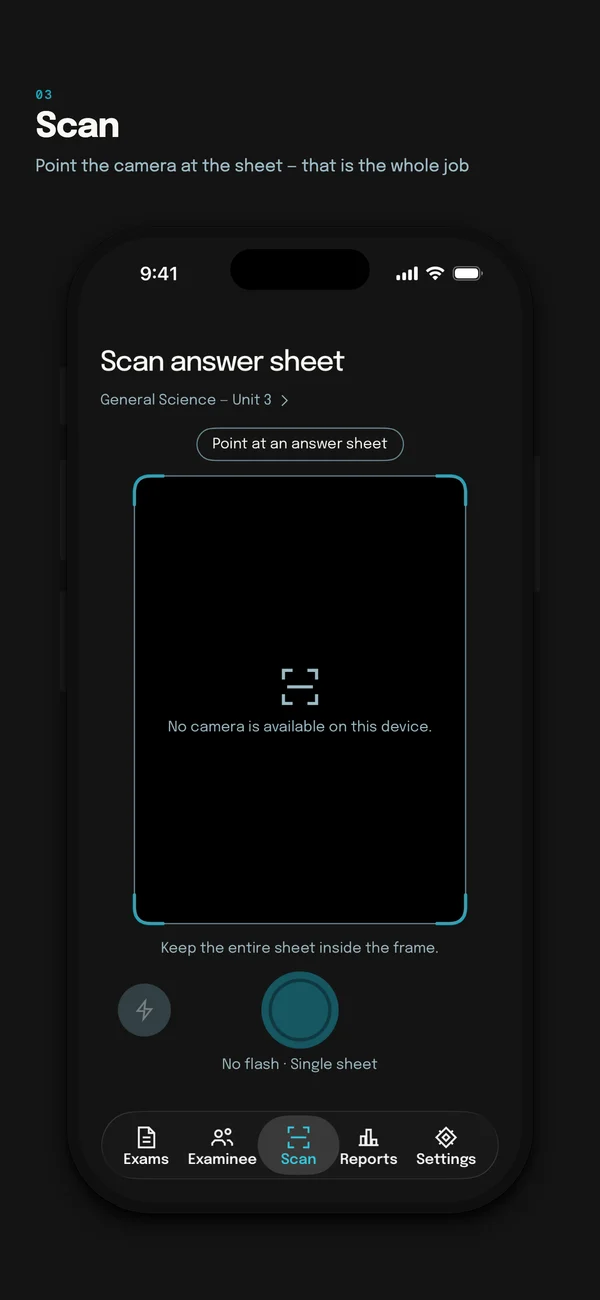
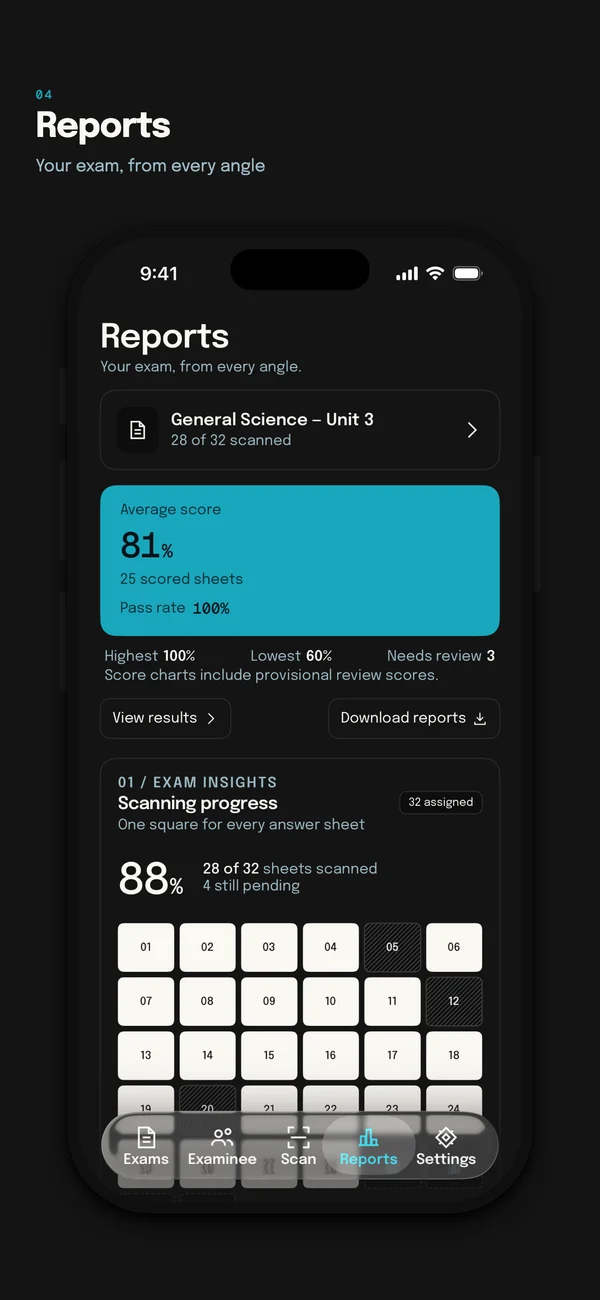
The same five tabs, in your pocket.
Scan at the front of the room on your phone, then review the results on the tablet — the screens below are from the App Store listing.
Download
One app for phone and tablet
Exigu is a single download on Google Play and the App Store — it fits the screen it is on.